App surfaces
app.surfaces[] — the Chat, Calendar (workflow.read) and Terminal (terminal.local) widgets agent-core contributes, with MCP App cards and Tool Access.
agent-core contributes three workspace widgets through app.surfaces[].
The surface contract itself — widget, card and dock shapes, chrome modes — is on
package-system App surfaces.
| Widget | id | Chrome | Notes |
|---|---|---|---|
| Chat | agent-core-chat | frameless, multi-window | The agent chat; opens by default and is opened from the workspace, not the rail. |
| Calendar | agent-core-calendar | frameless, multi-window | The surface over workflows. Needs workflow.read. |
| Terminal | terminal | frameless, multi-instance | The PTY terminal. Needs terminal.local. |
Calendar and Terminal each ship a dock companion. The agent creation studio
is a workspace view, not a widget: the + on the right dock opens it, and an
empty project shows it before its first agent exists. Chat shows the agent's
icon and colour from the one platform icon library, and Agent Config can add a
picture (PNG, JPEG or WebP — never SVG), served only to members who may read the
agent. Because all three are surfaces of one package, attaching a package-access
feature to agent-core hides them together; terminal.local still governs the
terminal on its own.
Chat
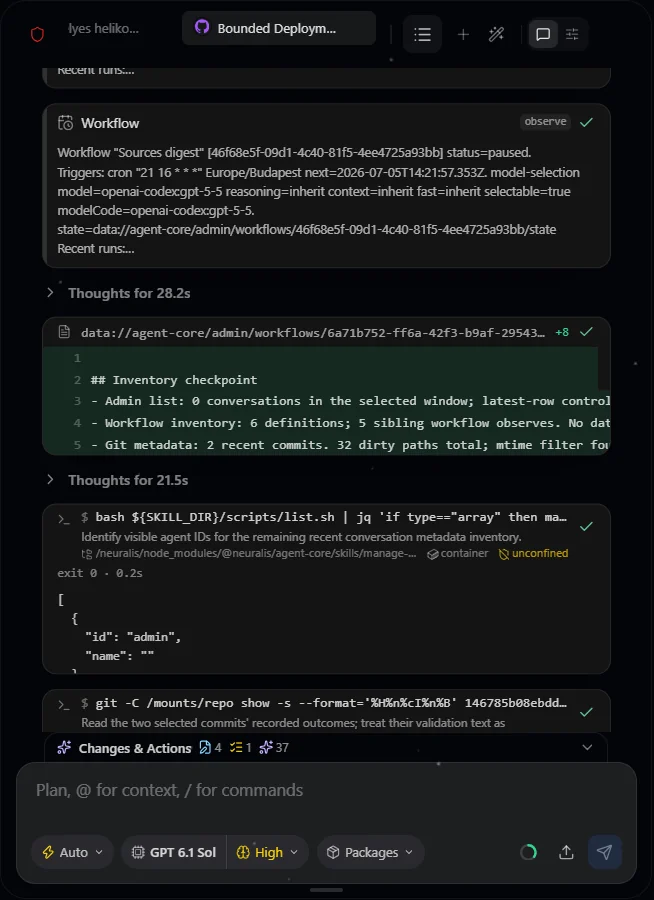
Chat in a configured installation, with conversation activity above the composer.
The Chat widget renders the streaming loop: the timeline (tool calls, thinking, approvals), the composer, the queue and the attachment lane. An empty conversation opens on the Package Constellation — every package the agent can actually use orbiting its icon, grouped into rings by trust path (native, sandboxed project drops, source packages). It is the permission-filtered truth: click a package for a breakdown of its contributions, insert its commands and resources into the composer, or toggle it for this conversation.
The composer. Type @ for files, folders and resources or / for commands
and skills; completion follows the cursor and picks replace only what you typed.
Attachments arrive by upload, drag-and-drop, or pasting an image, which uploads
it to the conversation's files. A large text paste collapses into a
Pasted text · ~12.4k tokens chip but is sent whole. The paste caps (25 MB per
image, 500 000 characters) are platform settings that guard the clipboard only.
Files added before the first message are staged privately and moved into the
conversation when you send.
-
Prompt Polish (
core.prompt-polish) rewrites the draft in one shot at three levels — translate, gentle, full — on any model or Auto (the conversation's). The result is an editable preview with undo; at full power the rewriter sees the same permission-filtered package overview the agent would, never tools your role cannot see. -
Guard profile (
Safe/Balanced/Auto) sets how readily the agent asks before running tools. A pick applies at once (mid-turn too) and is saved as the agent's default for members who may edit the agent; the order is conversation choice, agent default, thenBalanced. -
Input and Query. Input (and
Enter) is a new turn, queued while the agent works. Query adds your words to the session the agent is already in, as a card marked sent by you; it also wakes an agent that is waiting on a background subagent. While another member's response runs, a banner names them, andEntersends a query delivered when their response ends, in a turn of its own under your rights — so several people can write into one conversation. Everything sent while a response runs lands in the Queue tab of Changes & Actions, per person, with Insert, Interrupt, Later and Withdraw. -
Stop is the Input button while a response runs with an empty composer, its own button once you type, or
Esc. A stopped response does not send the next queued message. If saving your input cannot be confirmed, Copy input keeps it recoverable. -
Focus mode (the composer edge handle, or
/focus) gives the timeline the whole widget; the model, guard, packages, goal and summary controls stay available as slash commands. -
Model controls — a two-segment pill: the model name opens a provider-grouped picker; the reasoning badge opens the effort grid, fast mode and the extended-context switch, showing only what the model supports (see providers and models).
-
Packages — switch individual packages off for this conversation; a disabled package loses its tools and injected context server-side, on top of the agent's own package baseline.
The timeline is virtualized, so day-long conversations stay smooth, and every turn carries actions: edit a past message, undo or retry the last response, or rewind to any point — each optionally reverting the file changes made after it. Interrupted tool calls are repaired on the next turn. Chat is multi-user: while a teammate streams in a conversation you have open, their avatar appears on the agent's dock tile, a responding… banner shows, and the timeline refreshes when their turn lands. A turn no browser is driving — a workflow run, a background report, another agent's message — gets the same banner, naming what runs, with a Stop that takes effect for a turn that runs as you or for an admin; stopping keeps what the turn produced and offers no resume. One of your own background reports streams live in your tab when its conversation is open and idle; otherwise the platform runs that turn.
Status banners cover errors, stopped responses and context limits (with Continue, and Summarize now for a full window). A response the platform interrupted — a restart — gets a banner from durable state, and its author has it continued once automatically — never a response parked on an approval, which nobody has answered yet. A provider error being retried shows "attempt N of M, retrying in about N seconds". Codex sign-ins raise a brief warning at 80/90/95/99% of a usage window; the Usage Signal card in the config panel shows spend per model (estimates from the catalog's list prices) and each Codex window by its real length, refreshed once on open and then live, never polled.
Conversation history
The list icon in the chat header opens every conversation for this agent you may see — by default the ones you started; owners and admins see all. A conversation belongs to the member who started it: another member cannot list, read or continue it, unless an owner shares it through the source's policy. Search by title and filter by time, origin (Interactive / Workflows) and participant. Each row shows a live status dot, participants, cost, file changes, tool actions, subagent runs, forks, compaction and summary counts, the last model, tokens with cache-hit rate, and context occupancy. Forks and subagent runs nest under their conversation. A row's actions open its folder in Files or delete — either only the chat or the whole folder.
Cards in the timeline
Structured tool results render as cards; read-only calls collapse into a compact explored summary unless they stop for an approval or a question. Built-in cards cover shell and skill runs, filesystem changes, todos, questions, delegate runs and workflows. A package contributes a card for its own tool through the App-surface contract: an HTML entry served into a sandboxed, opaque-origin frame and fed over a bounded, one-way channel; a card bound to a foreign package's tool receives a generic placeholder, never the real input or result. A card's status is derived from the tool's actual outcome.
- A shell card shows where the command ran (container, a device, or a source such as Webtop), its working directory, and its confinement; a stopped connector call means the wait ended, not that the remote process was killed.
- A delegate card shows a bounded live view of its child run, with the full transcript a click away; a background run reports back with a Background report card. When an inner tool needs approval, the card becomes that tool's card with the approval footer.
- A workflow card is a ticket for the workflow the call touched — colour, next fires, settings, and for a pending change the old and new values side by side. Its buttons follow the viewer's own permissions.
- A todos card renders the list it wrote; Changes & Actions shows the same plan as a checklist with the session goal.
- Interactive cards — MCP Apps and package frames — are retained while the conversation scrolls, so they keep their state; retention is bounded per chat panel and never evicts a visible, in-flight or approval-pending view.
The Delegates tab lists subagent runs as running, needs approval, and done, with cost and steps; needs approval shows the real approval card. The Changes & Actions panel takes each card's declared tab for its activity, including a subagent's own tool calls.
MCP Apps
When a connected MCP server's tool declares a
ui:// HTML template, its result renders as a live, interactive card. Unmodified
MCP Apps and ChatGPT Apps servers work as-is: Neuralis announces the standard
client capability, speaks the standard app protocol, and hosts the app in the
spec's isolated-origin sandbox — a throwaway origin on a second published
port, never the app origin, with the template's Content-Security-Policy injected
server-side (connect-src 'none' by default). If that sandbox is unavailable
the card refuses to render rather than fall back. Open the workspace on exactly
the origin APP_URL names; another loopback spelling renders MCP Apps inert.
- An app calling back into its server's tools passes the same gate as a model call — hard deny rules, then the guard profile, with an approval footer on the card when the guard asks — and may target only the one server that owns it.
- Tool audiences follow the spec, fail-closed: an app-only tool never enters the model's catalog, a model-only tool is not callable from the app, and a malformed declaration is reachable from neither.
- Every operation is bound to a short-lived, opaque view lease the host keeps in memory and never hands to the app; the server derives the caller's scope from it and re-checks live access on every call. An approval resolves exactly once, from the originally persisted input.
- Links open only after a person confirms, and an app message can only prefill the composer.
Rendering needs mcp.apps (admin tier); mcp.connect is a separate,
member-granted feature, so an owner can allow connections without arbitrary
HTML. The full boundary is on security.
Agent Config
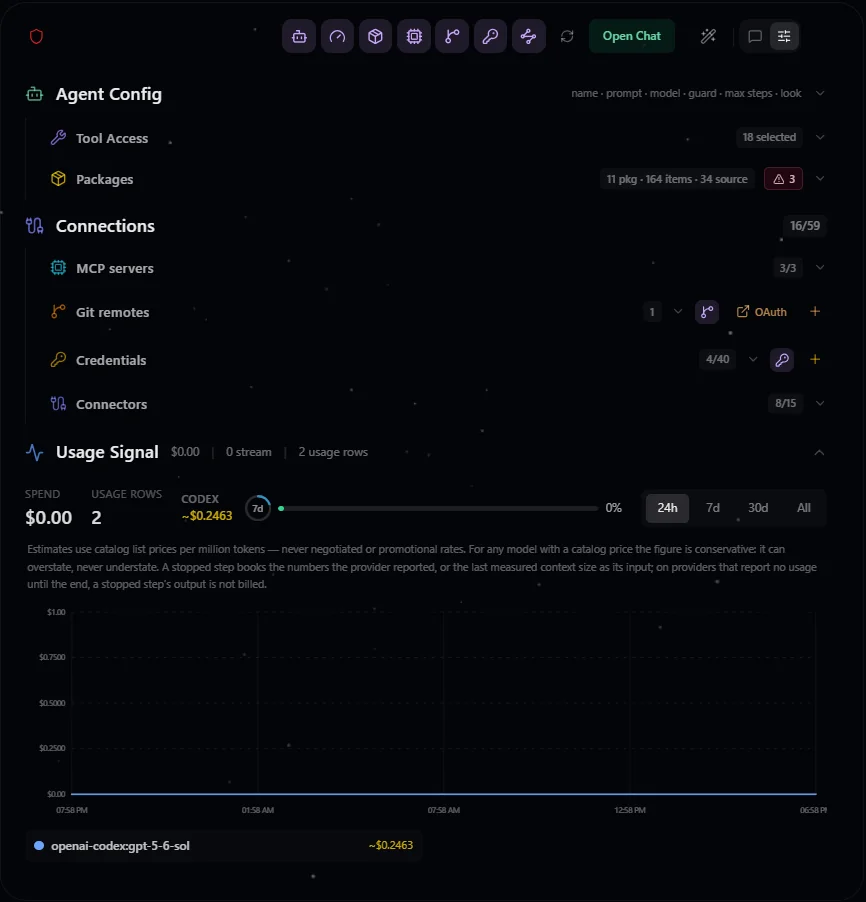
Agent Config in a configured installation. Available choices follow the current agent and project grants.
The config view opens on Agent Config — name, model defaults, guard, step limit — followed by Tool Access, Packages, Context and Appearance. Each part has its own save; the section's Save stores every change at once, and a refused save shows its reason beside the button. Context edits the base prompt (Customize makes a copy, Reset inherits again) and switches each setup-text category on or off — base prompt, guard instructions, identities, rules, instructions, workspace, runtime stack, package overview, pinned documents. These switches control prompt text only; authorization stays server-side. Agent setup context shows the saved configuration's effective text with exact bytes and estimated tokens, the effective tool catalog and contribution counts; it is not a complete conversation prompt, and it says which live additions it excludes.
Deleting an agent (the Danger zone at the bottom) removes it with its
conversations, files, memory and workflows, cannot be undone, and is written to
the audit trail whichever surface it came from. The control appears only for
callers the server says may delete, from the same check the deletion runs, and
a refusal reads the same whether the agent does not exist or you may not delete
it. A project holds at most maxAgentsPerProject agents (100 by default); a
batch that would cross it is refused whole.
Tool Access (per-agent tool selection)
The Tool Access panel narrows which tools the agent may use:
- Default-on. A fresh agent runs in all mode — every tool the caller's packages and features expose, including tools from packages installed later. The panel will not save all from a partial view: when tools are withheld from you, saving keeps an explicit list, so a selection never widens to tools you could not see.
- Custom = a frozen allowlist. Unticking a tool stores an explicit
selection; a deselected tool is gone from the model's function list and a call
to it is refused, in chat, subagents and workflow runs alike. A tool shipped
later stays off until the selection is saved again. A single tool can also be
switched off without leaving all mode, through the API or the
manage-agentsskill; the<packages>block then marks it[OFF]. - Narrowing-only. It never re-enables a tool hidden by a disabled package or a missing grant. Deselecting everything leaves a conversational agent.
- One source per contested name. When several sources offer a tool of the same name, the panel shows it once with a picker; the platform's own tools answer by default, and an approval runs on the source it was asked for.
- Agent-wide. The selection applies to every caller of the agent and reflects the catalog the saving editor could see.
This is the one place an agent's stored tool set is narrowed — its ceiling. A
delegate call, a persona's own list and a workflow's tools_off narrow one
run inside it. The Hosted MCP selection is a different question: which tools
the agent exposes to outside MCP clients.
Calendar
The Calendar widget is the workspace surface over the
workflow data — a projection, never a second schedule
store. It is visible to workflow.read holders and renders in each viewer's
own timezone, with the trigger's own zone shown as a chip when the two differ.
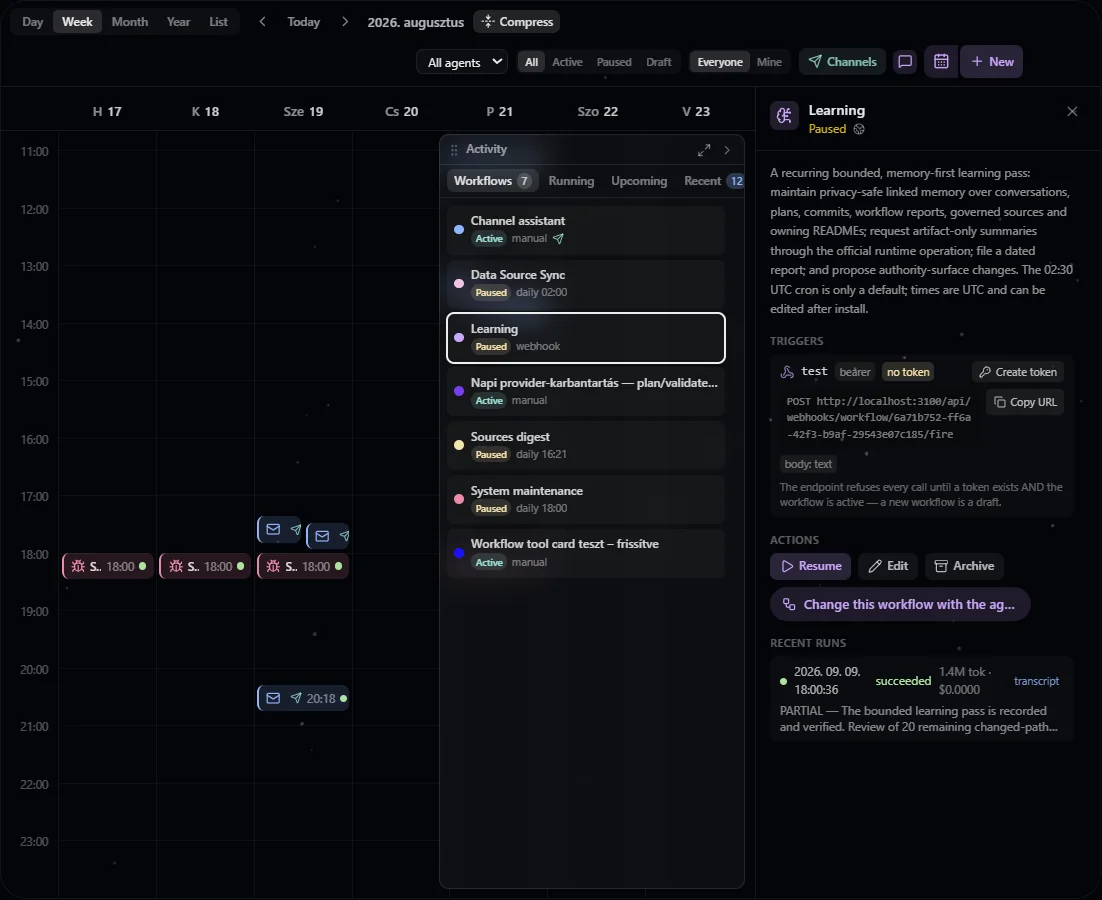
Calendar in a configured installation, with workflow activity and channel controls beside the schedule.
- Views. Day and Week time grids (long empty stretches fold into bands; the Compress toggle shows the full day), Month with run-status dots, Year with a heat tint, and a List with one row per workflow — manual-only and archived ones included — and inline run, pause, edit, archive, restore and delete. Channel-bound workflows carry a send icon.
- Occurrences. Past slots come from persisted runs, future ones from a bounded expansion of the live triggers, and skipped fires appear as markers.
- Live updates. Run and entry changes arrive over the workspace's realtime connection, re-checked against each viewer's visibility, so private workflows never leak. The activity rail shows running, upcoming and recent runs for the current view, and who each run executes as.
- Creating and editing. One form serves a blank workflow, a template install (inputs on top, the instruction as a preview, the template's package and trust tier shown), and an edit: trigger (Schedule, Webhook or Manual) with a timezone picker, conversation mode, visibility, max runtime, model, goal, colour, icon, channel bindings, and the packages its runs may use (disable-only). A new entry is saved as a draft or activated — always explicitly. Saving one trigger tab never drops the others.
- Run outcomes. Each run records a short result summary and its own usage. The inspector opens a live, read-only transcript, and Open in chat hands the run's conversation to the chat panel. A run that hands work to background subagents stays open until they finish, so its duration and cost are real — but its one-line summary is still the hand-off message, so open the transcript for the answer.
- Channels — the toolbar's Channels button opens the panel where you connect and pair channels.
The calendar offers each action only to callers whose request would be accepted.
Terminal
The terminal is the human's own window into the same machine room the agents
work in: an xterm.js widget backed by real PTY processes, streamed over a
WebSocket. It contributes no model-visible tools, and PTY output never enters
an agent's context — agents run commands through
execute, which keeps model shell access on one
policy-gated path.
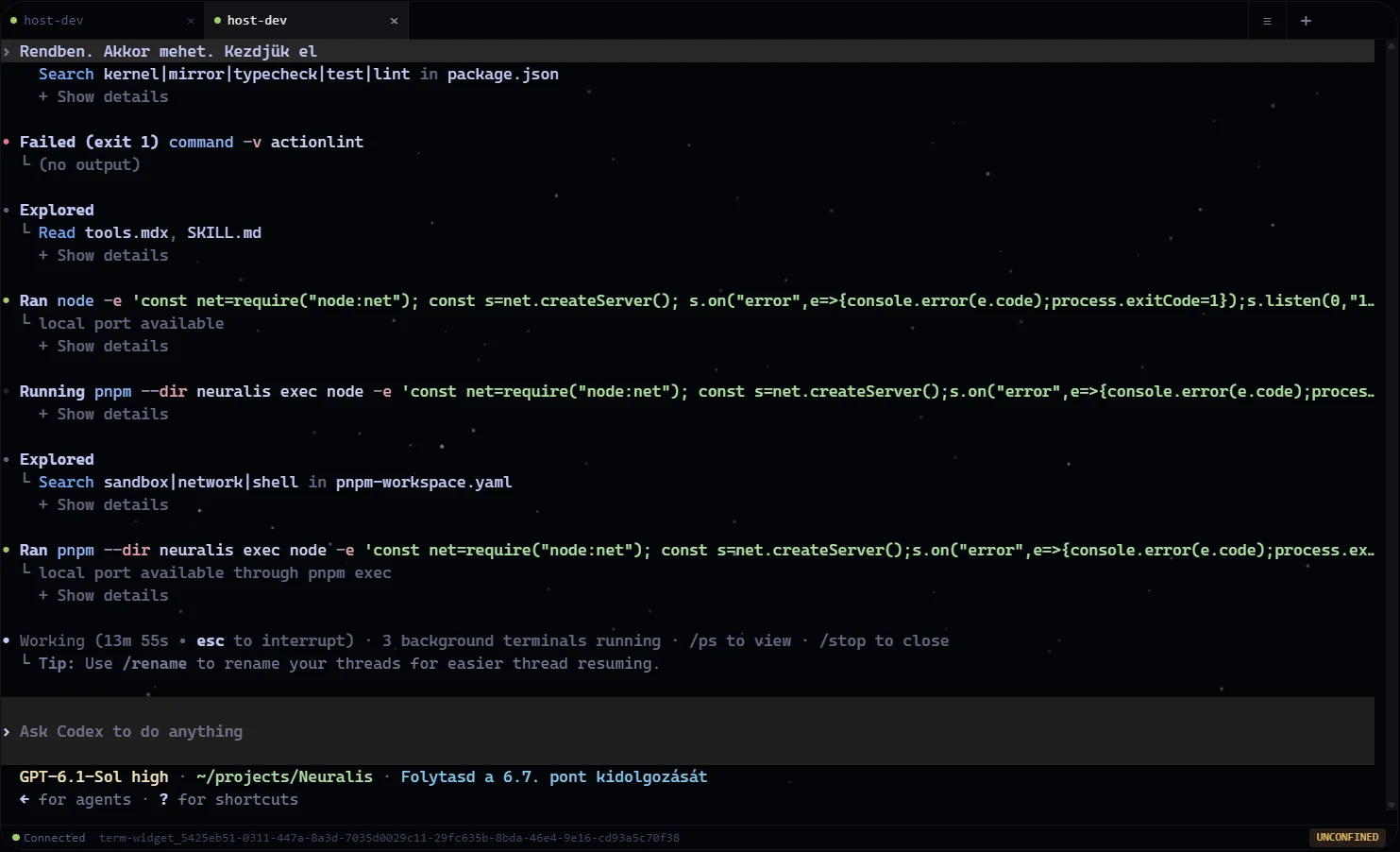
A configured host terminal running Codex. The sample output includes a failed actionlint invocation; terminal commands report their own results.
| Feature | Default | What it unlocks |
|---|---|---|
terminal.local | manager, member, admin | See and open the terminal and its local tabs; the gate on every terminal route. |
core.execute | manager, member | Type and paste. Without it a session is view-only. |
terminal.unconfined | admin tier | The Container Root tab: a session at / that bypasses source scoping but stays on the local plane. |
terminal.device | admin tier | Tabs on a paired device you do not own, while it runs sandboxed; your own device needs device.own. |
terminal.supervise | admin tier | List, attach to, take control of and terminate every managed terminal in the project; host sessions also need terminal.device. |
Viewers and new custom roles start with none of these.
Tabs. A fresh widget opens Terminal Manager and spawns nothing. You
pick a destination: a source tab rooted in one of the project's folders — on
this server or on a device — or the Container Root. A source is selectable only
when its policy grants you exec and it resolves a working directory; others
are listed with the reason, and the brain and Webtop sources are not terminal
destinations. The server re-checks every gate when the session is created, so
a session never starts in a directory you were not checked against. A device
folder is proxied through that device's broker, its roots derived from your
policy exactly as execute does and clamped again by the device owner's
ceiling; an offline device or a refused root is listed with its reason, with no
fallback to /, and a tab on an unconfined device shows an UNCONFINED badge.
A read-only source shows RO, and the badge, the input handling and the OS
rule derive from one evaluation.
Sessions. Sessions are keyed by user, project, agent and id, so nobody sees another's. Closing a tab detaches the view and leaves the process managed; Terminate destroys it. Several widgets can attach to one session — the first writable view controls input, and Take Control moves that lease. An idle session with no view attached is reaped after the idle timeout, with a countdown notice first. A reconnect gets a complete snapshot of the screen and scrollback, or just the output it missed. Sessions are managed, not durable: restarting the application ends every container session; a device session survives an app deployment but not a restart of the device's broker. A full-screen program keeps its own history on the alternate screen, which the terminal cannot replay (the tab shows FULL-SCREEN APP), and output printed before a resize keeps its old width.
Paste. Ctrl/Cmd+V sends text as a bracketed paste, or uploads an image:
the browser re-encodes it, the server stages it in the session's private scratch
folder (32 files / 64 MiB per session), and its path is pasted into the PTY, so
Codex and Claude Code attach it as an image. Each session has its own private
temporary folder, so CLIs work while shared /tmp stays closed.
Guarantees. The PTY spawns with secrets stripped from its environment, and
on Linux a source tab runs in the same Landlock sandbox as an agent shell, which
reproduces the path rules that separate users, roles and agents — another user's
conversation stays unreadable however the path is spelled; on other platforms a
confined spawn fails closed. Typed lines are also screened against a blocklist of
catastrophic commands — a pattern filter against accidents, not a sandbox — and
input is rate-limited. Session attach/detach and blocked lines are written to
the platform audit log. The WebSocket accepts only a page on the app address
APP_URL names, authenticates every upgrade server-side, and has no
unauthenticated fallback. terminal.unconfined, exec.unconfined and a
whole-home device folder are trusted-owner modes that can inspect same-account
state by design: do not grant them as ordinary multi-tenant roles.
The shell is chosen per spawn: NEURALIS_SHELL when set, COMSPEC on Windows,
the operator's $SHELL for the terminal, then bash, then sh. The session
caps — max sessions, scrollback, exec timeout and output, idle shutdown — are
platform settings. Updating a device's CLI
restarts its broker, which ends that device's terminals and background shells.