Files UI
The Files workspace surface: browsing and searching sources, the editor and diff views, Git Control, pending-change review, and source administration.
The Files widget is brain-core's workspace surface: a file browser, a
file editor, and the administration panels for sources and vector health,
all in one dockable panel. It is declared in the package manifest as a
singleton widget with a dock entry, and requires the drive.read feature —
users without it never see the dock icon. How widgets plug into the
workspace in general is covered by
App surfaces.
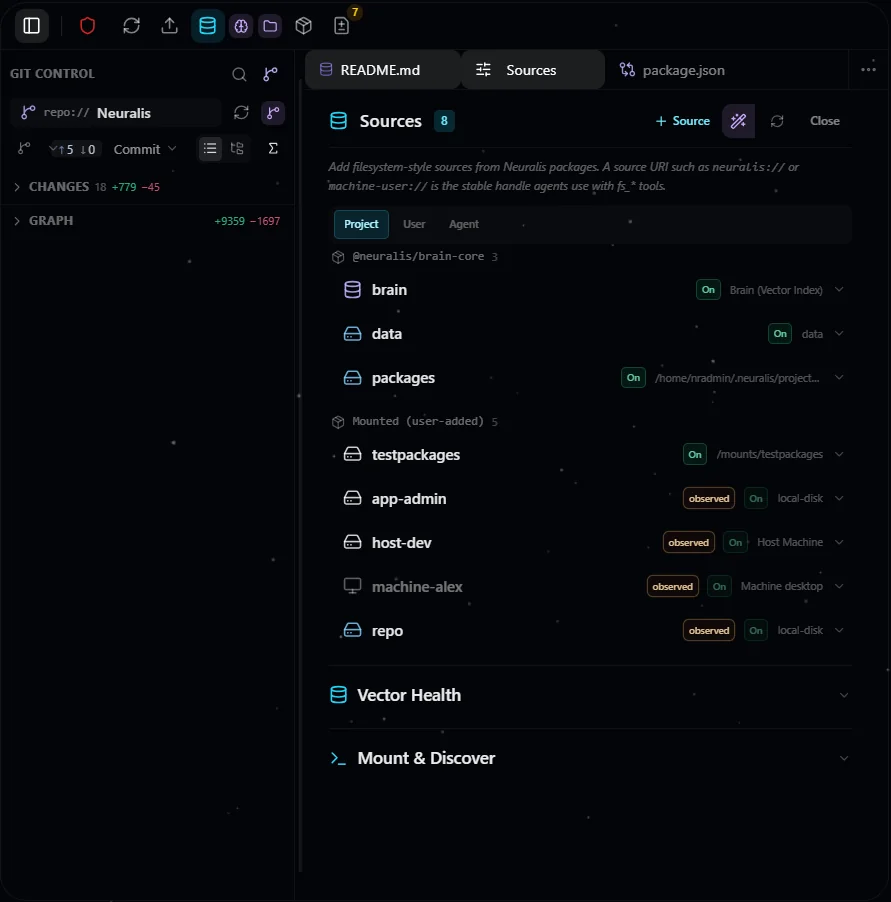
Files in a configured installation, with Git controls and Sources beside the file browser.
The toolbar identifies the active agent with its standalone configured icon and color. It uses the same package-system appearance resolver as Chat, the workspace agent dock, and Admin Canvas, so fallback identity cannot drift between widgets.
Browsing sources
The left side is a virtualized file tree spanning every source the caller can see. Each source renders as a top-level branch with its kind icon; package folders pick up the owning package's icon instead of a generic folder. The tree merges the vector index with live connector listings, and marks files whose index presence differs from their parent with a compact glyph — on-disk-but-unindexed and indexed-but-gone states are visible at a glance (the presence model is explained on memory and sync).
The tree is policy- and scope-aware: it renders what the server returns for the caller's session, and nothing else. Sources outside the caller's scope are absent, not greyed out — a non-member cannot infer that they exist. Path rules from URI policies are applied server-side on every route; the UI consumes a server-produced policy snapshot for affordances like dimming, and the server re-verifies on every call.
Live updates arrive over a server-sent-events stream, so file changes made by agents, syncs, or other users normally appear on their own — see Refresh, and why you rarely need it below for the two cases where an explicit check is still the authority. The sidebar is drag-resizable and its width persists per browser.
How the tree loads
The tree loads in two stages so that one slow source never holds up the rest.
Source headers appear first. The initial request asks only for the list of sources you can reach — no directory is walked. Every header is on screen before any storage backend has been contacted.
Content loads when you open a source. Expanding a source (or a folder, or following a link into one) fetches exactly that folder. Each source shows its own state on its header: a spinner while it is loading, a dimmed row while it has not been opened yet or its last listing failed. That is separate from a source being unreachable — which dims the same row for a different reason and says so in the tooltip.
Live updates re-read only what is on screen. When a sync or an outside change touches a source, the tree re-reads the folders you can currently see, and a sync that changed nothing re-reads nothing. Collapsing a folder also closes the folders inside it and stops refreshing them; opening it again re-reads it from the server.
Each source header also carries its own refresh control, in the same spot the spinner uses. It works on a collapsed source as well and opens the branch so you can see the result.
Discover — sources you could add
When every source in the tree is collapsed, a Discover list appears pinned to the bottom of the Explorer. It shows well-known locations that are available to this project but are not attached yet — the project zone next door, the app zone, a folder your operator exposed as a mount, or a source a package offers.
Rows are dimmed, because nothing is connected yet. Clicking one opens the Sources panel with the Add Source form already filled in — the right connector kind, the path, the scope, and whatever access the suggestion recommends. A suggestion can also arrive with sync settings prepared: an include allowlist so a large location indexes only the part worth indexing, and path rules that keep sensitive files unreadable. Everything is visible and editable before you save, and the server still checks that you may attach that location.
The form adapts to the connector you pick, because each connector declares what its root looks like. A source rooted in the container's filesystem offers the list of volume mounts your operator exposed and a Browse button; one rooted on the operator's own machine — reached through the host broker — offers neither, because neither would mean anything there, and shows that connector's own label and example path instead. A connector that needs no path at all simply does not ask for one.
The list shows five entries at a time; a small arrow in the Discover header expands it to the full list, and that is the only time it covers part of the tree. Open any source and Discover steps aside until you collapse everything again.
You will only see Discover if you are allowed to attach sources. It also stays out of the way entirely when there is nothing left to discover.
Refresh, and why you rarely need it
Live updates cover the normal case, but they are not a substitute for an authoritative check, for two reasons: a file removed while your connection was briefly down produces no event you can still receive, and a directory listing that hit its size limit cannot prove that anything is missing.
So the toolbar Refresh does more than re-fetch. It re-reads the folders you currently have open and reconciles them against what the server actually has: entries that are gone disappear, and entries that came back reappear — except a folder that still holds a restorable deleted file, which stays (struck through) until that file is dealt with. When a listing was too large to be complete, nothing is removed on that pass — the tree cannot tell "absent" from "not listed" there — and the source is flagged on its header so you know an explicit refresh is worthwhile.
The widget also re-checks by itself after a dropped connection is restored, which is what keeps Refresh a deliberate action rather than routine repair.
Deleted files
Deleting a file in the tree does not erase it. A file that is tracked by the platform is struck through and stays visible for as long as it can still be restored — the strikethrough is a notice, not a dead row. A file that only ever existed in external storage has nothing to restore, so it simply disappears.
A folder can be struck through too. That happens when the folder itself is gone but still holds a deleted file you could restore — the folder has to stay visible for its contents to be reachable, so it is shown as deleted rather than as a normal folder. Resolve what is inside it — discard or dismiss — and the folder goes with it. Restore the file instead and the folder comes back as a normal folder, because it exists again.
There are two ways to clear a struck-through entry, both already part of the workspace:
- Changes — restore, discard or dismiss the individual record. As soon as the record is resolved, the entry leaves the tree on the next refresh.
- Vector Health → Clean up — bulk removal of deleted records past their retention window (24 hours by default). Two things follow from that: a file you deleted a moment ago is not eligible yet, so use Changes for the immediate case; and this cleanup does not emit a file event, so the tree drops the rows on its next refresh rather than instantly.
Search
The sidebar's Search view (a top-level toggle beside Explorer and Git
Control) replaces the tree with a search surface. The query input sits inline
in the sidebar header — the header title flips to Search, and the toggle (or
Escape) clears the query and closes the view even with text in the box. Three
modes map straight onto the fs_search engines: Keyword (default — the
indexed word search, ranked by term frequency), Semantic (embedding
search by meaning), and Grep (literal scan of live connector content,
scoped to a disk-backed folder; unavailable when only the brain memory source
is reachable). A separate filter row — filename, category, status, tags,
created-date range, and a scope-to-current-folder switch — combines with both
Keyword and Semantic; grep uses the filename and scope filters. Results render
as one list with match badges (hybrid / semantic / keyword), scores, and
uri:line locations for grep hits; search failures and grep guidance surface
inline instead of an empty list.
Git Control
For sources that hold git checkouts — the source root itself, or repositories
sitting in its folders — the sidebar has a Git Control view — a top-level
toggle beside Explorer and Search that replaces the file tree in place with
a source-control surface. A repo-switcher lets you pick among the git
repositories you can access — each entry shows the source coordinate and the
repository's real name (the checkout folder), as repo:// Neuralis, so the
header names the actual repository rather than the source key. A source whose
root is not itself a checkout but whose folders contain several repositories
shows every one of them in the picker — the same quick-pick as the branch
picker — and choosing one drives the whole panel: change-set, branches,
history, and the write controls all address the selected repository. The picker
only ever looks downward: a source rooted inside a larger checkout — a
single package folder of a monorepo, say — is not git-backed here, because every
git route requires the repository to sit at or below the source root. Attach the
repository root as its own source (and fence the rest with path policy) if you
want git on part of it. The panel
shows the current branch and the working change-set
grouped into Changes and Staged Changes, with an always-visible
flat-list / folder-tree toggle for the change-set. Untracked (new) files sit in
Changes alongside your edits — marked with a green U, the way a desktop
editor shows them — rather than in a separate group. Each change row reads
left-to-right like a desktop editor: a file-type icon, the filename, its
dimmed folder path, and a colored status letter on the right; the per-file
stage / discard buttons appear on hover and take up no room otherwise. The panel
body is a desktop-editor-style pane stack: each group is a collapsible
section with an always-visible header (title, count, and hover-revealed bulk
actions), and sections are drag-resizable — including collapsed ones:
dragging a collapsed section's header opens it and sizes it in one motion, so
you never have to open a pane just to give it room. Changes is always shown
(with an empty-state note when clean); Staged Changes appears only when
non-empty. Section collapse state and heights persist per browser, like the
sidebar width — and re-opening a section you had shrunk to nothing brings it
back at a usable size. Source rows in the tree and the Sources panel also carry a small
git marker and the repository name(s) — shown alongside the sync
indicator, never in place of it, so a source reads as both indexed and a
repository at a glance. The name is the repository's real name (its remote
origin's name — a checkout mounted under a generic folder still reads as
Neuralis, not the mount name), not the branch; a source whose folders contain
several checkouts lists each nested repository's name, and a source that is
itself one repository shows that one name.
Diff counts
Every surface in Git Control can show how many lines a change adds and removes.
The section headers — Changes, Staged Changes, and Graph — always carry their total. The Graph header's number is the whole unpushed run: what you are about to push, in one figure.
Everything else is behind a single toggle beside the list/tree switch. With it on,
each file row shows its own +/- next to the status letter, each commit in the
graph shows its total beside the author, and the file list inside an expanded
commit — or inside the outgoing changes — shows one per file. Turning it off is
worth doing on a narrow sidebar: it also stops the graph from asking for the
numbers at all, so paging through a long history stays as fast as it was before.
A row with no number is not a row that changed nothing. It means the count
could not be established honestly — the file is binary, or it is a new file the
panel did not measure (there is a per-refresh budget, adjustable in platform
settings), or your repository transforms the file on commit so its stored size
differs from what is on disk. In those cases nothing is drawn rather than a
misleading zero. A section total that could not account for every row is shown
with a trailing +, meaning "at least this much".
Counts follow the same visibility rules as everything else: if a path rule hides a file from you, neither the file nor its lines appear anywhere — including in a commit's total.
The panel is scope- and policy-aware like the rest of the Files UI: the repo-switcher lists only repositories you are entitled to see, the change-set and branch list are fetched per-repository under a read gate, the nested repository names shown in the tree are filtered by the same per-path read policy, and every path is returned repository-relative — host paths are never exposed. A member who cannot see a project's git sources never learns they exist.
Diffs. Clicking a change-set row opens a side-by-side diff as a new tab in the file pane, showing the before/after of that file. A Changes row shows the working-tree edits (against the index); a Staged Changes row shows what is already staged (index against the last commit). The diff shows the full change: unchanged regions between hunks collapse into clickable "N hidden lines" rows that expand in place (with an expand-all control), the way a desktop editor's source-control diff does. The diff and any expanded context are fetched under the same per-file read gate as the rest of the Files UI; only an exceptionally large change is truncated, with a clear notice.
Live updates. The Git Control panel, the change badges, and the branch indicators stay live: when the repository changes — whether from a git operation in the panel or from an external command in a terminal — the affected source refreshes automatically, so the change-set and branch you see always reflect the real checkout. In a source that contains several repositories, each repository is watched individually, so an external commit or checkout in any of them refreshes the panel and the history graph, and the file tree now shows per-file change badges inside those nested repositories too. The Changes list itself streams live as well: creating or editing a working-tree file updates it as it happens, without a manual refresh. These live updates are scoped like everything else — a git notification only reaches members who can access that source.
Staging and committing. You can stage and unstage changes (whole file
or a selected hunk), discard working-tree edits, and commit the staged
change-set with a message — all from the panel. A destructive action (discarding
edits, deleting a branch) always saves a recovery point server-side first, and the
notice it shows carries a one-click Undo that restores exactly what was
discarded or deleted. The commit box sits behind a
Commit toggle next to the branch indicator — collapsed by default so the
change lists keep the vertical space, with a count badge showing how many files
are staged; your open/closed choice persists per browser, and
Ctrl/Cmd+Enter in the message field commits. The branch indicator opens a
quick-pick to switch, create, or delete a branch, and a Graph
section at the bottom of the pane stack (collapsed by default) renders the
repository's history as a commit-lane diagram inside the panel. History is
effectively unbounded — it keeps loading as you scroll, with no "load more"
button — and the graph stays live: new commits, checkouts, and branch moves
appear as they happen, driven by the same scoped live channel as the change-set.
Commit drill-in. The graph rows are flush — no boxed backgrounds — so the history fills the pane like a desktop editor's. Hovering a commit row floats a card with its full message (subject and body); clicking it expands the row in place to show that message, author, and date, plus the list of files that commit changed. Clicking a file opens a side-by-side diff of that file against the commit's parent, and an Open Changes action on the row opens the whole commit as a stack of per-file diff cards in one tab — the fastest way to review a commit end to end. Historical file contents are served under the same per-file read gate as everything else.
Pushed vs. outgoing. When the current branch tracks an upstream, the graph
shows what has left the building and what hasn't — blue is the not-yet-pushed
color: commits not yet on the upstream render with a hollow blue dot, an
expandable "Outgoing changes" row in the same blue above them aggregates
every not-yet-pushed file (with the same click-to-diff and Open Changes
actions), branch and remote decorations are visually distinct (local branch
labels stay violet, remote refs carry a cloud glyph, tags are amber), and the
branch bar shows ↑ahead ↓behind counters, the ↑ side in the same blue — it
counts exactly those outgoing commits. All of this reads your local refs only —
it is as fresh as your last fetch. For a viewer who can write, the counters sit
inside a fetch / pull / push button: clicking it opens a small popover to
Pull, Push, or Fetch the current branch (see Connecting a git
remote below). A repository with no upstream simply shows the button without the
counters.
These write operations are gated: they require the write feature and write permission on the source, evaluated per-viewer against the source's policy — and, in a source with several repositories, per repository, so one checkout can be read-only while its siblings stay writable. The stage, commit, and branch controls appear only for a viewer who can actually write to the selected repository, and a read-only viewer sees the change-set without them. A destructive operation (discarding changes, deleting a branch) is always recoverable: before it runs, the server records a rescue point in the repository's reflog, independent of the confirmation dialog, so nothing is lost. Clicking one of these controls is itself the consent — the panel is the human surface; agent-driven git operations go through a separate approval flow.
Connecting a git remote
Pushing, pulling, and fetching need a credential for the remote host. You connect one in the chat Configuration panel's Git Remotes section (visible only with the connect git remotes feature): paste a personal access token for the host, pick the host type, and save. The token is stored write-only in your own personal scope — it is never shown again and never echoed back, and another member can't read it. Owners and admins manage project- or agent-wide git tokens from the admin Credentials tab instead.
Two boundaries apply:
- HTTPS remotes only. A remote must use an
https://URL; SSH remotes are not supported and fail closed. - Remote operations additionally require
exec. Connecting a token is not enough to run git against the network — the source must also grant theexecURI policy (on top of write permission). Without it, the panel's fetch / pull / push popover shows a "grant exec to enable remote operations" message instead of the controls, and the routes return the same result rather than running.
Once a remote is connected and exec is granted, the Git Control panel's fetch /
pull / push popover runs them against the current branch: Push publishes the
current branch (no force), Pull fetches then fast-forwards, and Fetch
refreshes your remote-tracking refs so the ahead/behind counters show true
divergence. Each operation uses your own connected token for that host,
resolved at your scope and released only to the exact connected host — it never
appears on the command line, in .git/config, or in a URL.
Username conventions. For every supported host the token is the password; the git username depends on the host and token type. The connect form shows the resolved username as you fill it in, so you rarely need this table:
| Host / token | Git username |
|---|---|
| GitHub PAT (classic + fine-grained), GitLab PAT, Gitea / Forgejo PAT, Azure DevOps PAT, self-hosted | your account label (any non-empty value; the account name is ignored but must not be empty) |
| GitLab OAuth token | oauth2 |
| Bitbucket access token | x-token-auth |
| Bitbucket Atlassian API token | x-bitbucket-api-token-auth |
Bitbucket app passwords are not supported (Atlassian removed them); use an access token or an Atlassian API token. Azure DevOps shares one host across orgs, so a PAT is the reliable choice there.
Minimum push scopes. Give the token the least it needs to push:
| Host | Minimum scope |
|---|---|
| GitHub | classic PAT: repo · fine-grained PAT: Contents Read/Write + Metadata Read |
| GitLab | write_repository (read-only: read_repository) |
| Bitbucket | write:repository:bitbucket (+ read) |
| Azure DevOps | Code (Read & Write) — vso.code_write |
| Gitea / Forgejo | write:repository |
Editing files
Clicking a file opens it in a VS Code-like editor: syntax highlighting with the exact editor colors for the common languages (extensible to more), a line-number gutter, and a git status stripe on the left for tracked files (added / modified / deleted). Highlighting is incremental — a large file colors the part you are looking at first and fills the rest in as you scroll, and typing re-highlights only the region around the edit — so files of hundreds of kilobytes stay colored and responsive. The same editor backs both viewing and editing — pressing Edit turns the view editable in place with no flash, and Save writes the change for review. Markdown renders as formatted text with a source toggle; binary files render through the raw route with extension-inferred MIME; images and video preview inline. Formats a browser would execute as a document — SVG, HTML and XML — download instead of rendering, because a file one member writes is opened by another and an executable preview would run with the reader's session. The file itself is untouched and fully downloadable.
Open files live in persistent tabs that survive a page refresh (drag to
reorder, double-click to pin, and a … menu to Close All / Close Saved / Close
Others or enable single-slot preview tabs). A file opened from a chat card or a
search hit lands inside its folder in the tree even when that folder's listing
arrives later. The widget's state is kept per agent and project — the open
tabs, the expanded folders, the sidebar view and the panels: switching to
another agent shows that agent's own Files state, never the previous one's, and
switching back finds the tree and the editor where you left them, tabs
included, even after a reload. In a narrow widget the tab strip scrolls,
bringing the active tab into view. The dock's clean (broom) control on the Files item, on the agent or
on the project empties this client-side state entirely — tree, tabs and caches
— without touching anything on the server; the tree re-lists on the next open.
Uploads go through the Upload tab, by picking files or dropping them onto it.
If the file service itself cannot be reached, the tree says so and offers a
retry instead of showing an empty drive.
Pending changes open as a review diff with green/red change bands and the same syntax colors as the editor, so the diff never visually jumps relative to the file. A layout toggle switches the diff between a single unified column and a side-by-side split view (Auto picks by width) — the same control applies to the git source-control diff.
Agent writes surface in chat as a filesystem-change card: a diff rendered
from the tool call with an accurate added/removed line count, and — for
delete actions — an approval card that holds the operation until the user
approves, except in auto mode, which never asks. The card never re-issues writes; approval flows through the
package's approve route under the drive.write gate.
Each pending change offers Approve (commit it) and Revert (undo it).
Every mutation requires the drive.write feature and is re-authorized per
record on the server — the caller's session identity, the project boundary,
the record's owner, and the file's own path permissions are all checked, in
that order, before anything changes. An owner or admin with scoped
authority can clear the pending changes an agent or teammate created, not
only their own — it is a shared review inbox; resolving someone else's change
keeps their name on it. Approving a deletion accepts it for good: the file
never reappears in listings or search. Changes whose file or source has since
disappeared are surfaced separately and cleared with a Repair action.
Managing files and folders
The file tree is a full file manager. Right-click any file or folder for a menu — New File, New Folder, Cut, Copy, Paste, Copy Path / Copy Relative Path, Rename, and Delete — and select several items at once with Ctrl/⌘-click or Shift-click. Right-clicking a source header or empty tree space gives a shorter menu with just New File and New Folder, creating at that source's root. Rename and create happen inline in the tree (press F2 to rename; type a name and press Enter) — you can rename a folder as well as a file. Delete asks for confirmation and moves the item to Changes, so it is always recoverable — nothing is permanently erased.
You can also drag a file or a whole folder onto another folder to move it — including into a different source (for example from a local project into the vector memory, or between two mounted folders). Copy and paste duplicate an item (a file, or a folder and its contents) to a new place, in the same source or another one. New Folder creates a real directory; in the vector memory, folders exist implicitly wherever files are stored under a path.
A rename or move never overwrites: if the destination name is already taken — by a file or a folder, in any source — the operation is refused and the editor shows the reason; delete or rename the occupant first. Copy, paste, "New File" and uploads instead land beside an existing file under a suffixed name. One edge is worth knowing: a file the index still lists but that has since vanished from disk counts as taken until the next sync notices it is gone.
When you rename, move, copy, or create something, it applies immediately — like a desktop file manager. When an agent does the same operation on your behalf, it lands in Changes for you to review and approve first, so an agent can help organize your workspace without making unreviewed changes.
Changes
The Changes tab groups the current Git working changes and pending filesystem review across visible sources, including sources without Git. The same file appears once, with separately labeled comparisons for each repository’s staged and unstaged bases alongside its pending baseline. Inventory limits are shown explicitly; a partial source is never presented as complete.
Diff cards start expanded in one virtualized list, so only the cards near the viewport are in the page. A card loads its diff when it comes within about two screens of the viewport, at most three requests at a time, and keeps it: scrolling back over cards you have already seen sends nothing until the file or its source changes. When the source does change, a card keeps showing the diff it has while the fresh one loads in the background (a small spinner marks the refresh), so a busy source never blanks the list. Source events invalidate only that source, and obsolete replies cannot replace the new context. A Type filter shows all changes, only pending review, or only Git; the repository picker names each checkout the way the Git panel does (its origin name, such as repo:// Neuralis). A compact list and source/agent/conversation filters remain available; historical commit/outgoing cards remain read-only.
Approve N counts only the visible changes that need no extra confirmation, and its total is known before you click: an older change whose original draft was never recorded always needs one, so it is counted beside the button as M need confirmation instead. That opens one dialog where the changes are grouped by reason (original draft unknown, changed outside the review, diff not readable), each shown with its own diff, and confirmed a group at a time — every change still goes with its own fresh preview, so one that moved in the meantime is refused and stays in the list. The dialog takes up to 100 changes at a time; once every change in it has an outcome, its group buttons stop accepting clicks and a Next batch button opens the following ones. Whatever a sweep could not do is listed per change afterwards, never dropped silently.
The Files toolbar shows the number of pending changes you can review as a badge on the Changes button. It follows your own visible set, refreshes shortly after a burst of changes — including another agent's or teammate's in the same project — and again when you return to the tab.
Review uses a fresh POST /pending {action:"preview",id} receipt, separating current connector bytes from the recorded snapshot and saved baseline. The preview reports missing/unavailable/binary/too-large content and missing/stored/stale/recovery-only index states within pendingPreviewMaxBytes (default 262144). Approve (POST /approve) and Revert/Dismiss (POST /pending) carry expectedFingerprint; states requiring acknowledgement additionally need acknowledgeCurrentState:true after review. Freshness, tenant, owner, source scope and URI READ/WRITE gates run again at apply. Missing state is never fabricated, backend errors never become absence, and acknowledgement grants no permission. Approve/Dismiss preserve the stored snapshot and index state, including a genuinely absent index; recovery-only metadata uses explicit vector-clearing retention. Revert uses the saved baseline, refuses missing baselines and occupied destinations, and gates both move coordinates. Legacy unsafe pending /write revert:true requests refuse; ordinary non-pending one-level undo remains available.
The journal survives restarts and lists never-indexed connector files. The tab requires drive.read; every entry is re-authorized for owner/scope and path READ access. Review controls require actual WRITE access, and bulk approval goes through each record's fresh review receipt.
Dismissing a change
Besides Approve and Revert, every live entry offers Dismiss (the x
button) — "accept and stop reviewing". Dismiss keeps whatever the agent did
exactly as it is and just clears the review entry: a created or modified file
stays on disk and stays indexed, and an agent's deletion stays deleted. No file
content is ever written or restored by a dismiss — it only ends the review, so
it is the right verb when you've looked at a change and simply don't need it in
the queue anymore. Dismiss applies to live entries only; entries whose backing
file is gone are handled by Discard below.
Dismiss is permission-aware like every other resolution: you can only dismiss changes you own (or, with the scoped-modification feature, changes your role lets you manage), and the file's path permissions must still allow writing. A backend outage refuses resolution; a confirmed missing index remains honestly missing. Dismiss never invents an indexed node. Dismissing is safe to repeat: if an interruption leaves a just-dismissed entry briefly visible, dismissing it again completes the resolution.
Orphaned changes and Repair
Occasionally a change can no longer be approved or reverted because the file behind it is gone — it was deleted out of band, or its whole source was removed — and there is no baseline to restore. Those entries are detected and marked Orphaned, and the only action offered on them is Discard, which removes the stranded review entry (it never recreates a file). A self-hiding Repair button in the toolbar appears whenever orphaned changes exist and discards them all at once, after a confirm. The orphan check runs when the tab opens and on Refresh, not on every live update. Discarding only ever affects changes you are entitled to, and an actionable change can never be discarded by mistake — it stays approvable and revertible. Discard is permission-aware: while the file's source still exists, the file's own path permissions apply; only a source that was itself removed is cleaned up without them (there is no path policy left to consult), and a transient error is never treated as a removed source.
From a chat conversation, the Open in Files action jumps straight to this tab scoped to that conversation. (That navigation is separate from the inline approve/deny prompt that appears in chat for a held operation.)
The Sources panel
Source administration lives in the right-hand panel scaffold. Rows are grouped by the package that owns the source: each package's sources sit under its own header (sorted alphabetically), and sources you mounted yourself collapse into a single Mounted (user-added) group that sorts last. The group header is the source's provenance — there is no per-row "first-party" badge. Attribution is resolved on the server from each package's source declarations, so it cannot be spoofed by naming a mount after a built-in source.
- Add a source — pick a connector kind from the registry catalog, choose a scope (project, user, agent), and fill the kind's config form, which is rendered from the connector's declared schema. The key field is pre-filled with a scope-qualified suggestion (see naming); manual edits always win.
- Mount & Discover — a "Discoverable" list surfaces well-known but
unattached roots (the app zone, the projects zone, any
pnpm neuralis:mountbind, and — on native/non-Docker deploys — the Full Host root/). Clicking one pre-fills the add-source form with its path and a suggested default access; when the entry comes from a package's discoverable source declaration, its declared description pre-fills the form too. High-blast-radius roots like the whole host pre-fill as read-only so the safe default is the starting point; the owner can widen write/exec, or narrow the path policy, before saving. A suggestion may also arrive with an include allowlist (so a large location indexes only the part worth indexing) and with path rules that keep sensitive files unreadable. Those two do different jobs and neither replaces the other: an include decides what gets indexed, while what an agent can read is set by the source root and the path rules. The Neuralis tree shows both at work — it offers a narrow proposal rooted at the skills folder alongside the whole-folder one, and the whole-folder proposal arrives with a skills-only include plus a rule denying.envfiles, because that root holds the deployment's environment file. Privileged zones (the app zone, the Neuralis source tree, and the whole host) require thedrive.mount.privilegedfeature — held by owner/admin by default, grantable to a custom role. Without it, those entries are hidden from the Discoverable list, browsing one of them (or the filesystem root) is denied, and attaching a source rooted in (or over, or at) one of them is denied server-side; ordinary mounts still need onlydrive.mount. Both the Discoverable list and the Browse button needdrive.mountat minimum, so a reader who cannot attach a source never sees either. - Describe — each source has a collapsible description field; the text feeds the agent's runtime-stack source table, so it doubles as agent guidance.
- Sync controls — per source: Sync, Cancel, Rescan changes (walk the whole source again; unchanged files keep their vectors), Forget sync state (the next sync compares every file; deletes no file and no vector) and Re-embed… (embed every file again with the active model — the dialog shows a sample-based cost and time estimate first and starts only on confirmation). The Files tree's context menu offers the same Re-embed… for one folder or file. Below them sit the sync trigger, exclude and include configuration, and the Media toggles — images, PDFs, video, audio (the first two on by default) — which take effect only while the active embedding model supports that kind; the source's last-sync line says how many media files were not embedded and why (a text-only model, a kind switched off, over the size limit, unreadable). Switching a kind off also removes the media files of that kind already embedded, at the source's next full sync. The include allowlist is available when adding a source as well as when editing one.
- Per-source counts — the connector / indexed / unindexed totals for a source are computed only when you expand that row, scoped to that one source, and cached. Opening the panel itself never triggers a project-wide count walk — so a project with many large sources stays instant to open.
- Enable toggle — flip a source live or dead without deleting it.
- Recognize packages — a checkbox on both Add and Modify (local
sources only, owner/admin) that turns the source into a runtime-package
source: packages dropped into the folder load alongside the project's
_packages/drop-zone. Because a source carries a scope, a user- or agent-scoped source's packages are advertised only to that user or agent — per-person and per-agent capabilities on a shared project. - Policy editor — a compact permissions editor over the persisted policy
tree: tri-state read/write/exec badges on the default block, per-role,
per-user, and per-agent override rows, and path rules with role and agent
chips. Editing requires the
drive.policyfeature. - Delete — an inline confirm popover that states the host folder is never touched and offers an off-by-default Purge vector index entries checkbox.
Vector health and packages panels
The Vector Health panel is the index janitor: per-source last-sync status, deleted-record garbage collection, orphan repair, and a read-only duplicates report. It loads only when you expand it, and on open it shows just the cheap count stats (total / documents / chunks / deleted, per source) — these are exact counts, instant even on a project with millions of indexed points. Orphan and duplicate detection is a separate, explicit Scan for problems action, because it has to walk the whole index. Destructive actions require a second confirming click. For callers who can write, Repair pending lists your own pending changes by repair class: orphaned changes (file gone, nothing to restore) are discarded, and older changes whose original draft is unknown are only counted — confirm those in Changes. Run it with Dry run first to see the counts; it never reindexes anything. The full semantics are on memory and sync.
The Packages panel surfaces project-package operations — rescan, build,
trust, and a per-package access-feature control — by calling host-side
project routes. All are gated server-side on the role's can-manage-roles
flag or the packages.manage feature — never on a role name, so a custom role
configured with either passes exactly like the seeded owner and admin. The
access-feature control attaches (or clears) a required feature that gates the
whole package's visibility — a restrict-only override that works for both
first-party and project packages. A package that already declares its access
feature in its manifest shows it read-only. See
features and access.
The UI is never the authority
Every operation in the Files UI calls the same routes agents and external
clients use, with the same session identity and the same feature gates
(drive.read, drive.write, drive.search, drive.sync, drive.mount,
drive.mount.privileged, drive.policy). Hiding a button is a courtesy; the
server-side check is the control.