App surfaces
The Files widget and dock, and the filesystem-change card: browsing and searching sources, Git Control, the editor, Changes review, and the Sources and Vector Health panels.
The Files widget is brain-core's workspace surface: a file browser, a
file editor, and the administration panels for sources and vector health,
all in one dockable panel. The manifest declares it as a widget with a dock
entry — several Files windows can be open, each with its own tabs and
selection — and it requires the files.read feature: users without it never
see the dock icon. The third surface is the filesystem-change card in chat
(see Editing files). How widgets plug into the workspace in
general is covered by App surfaces.
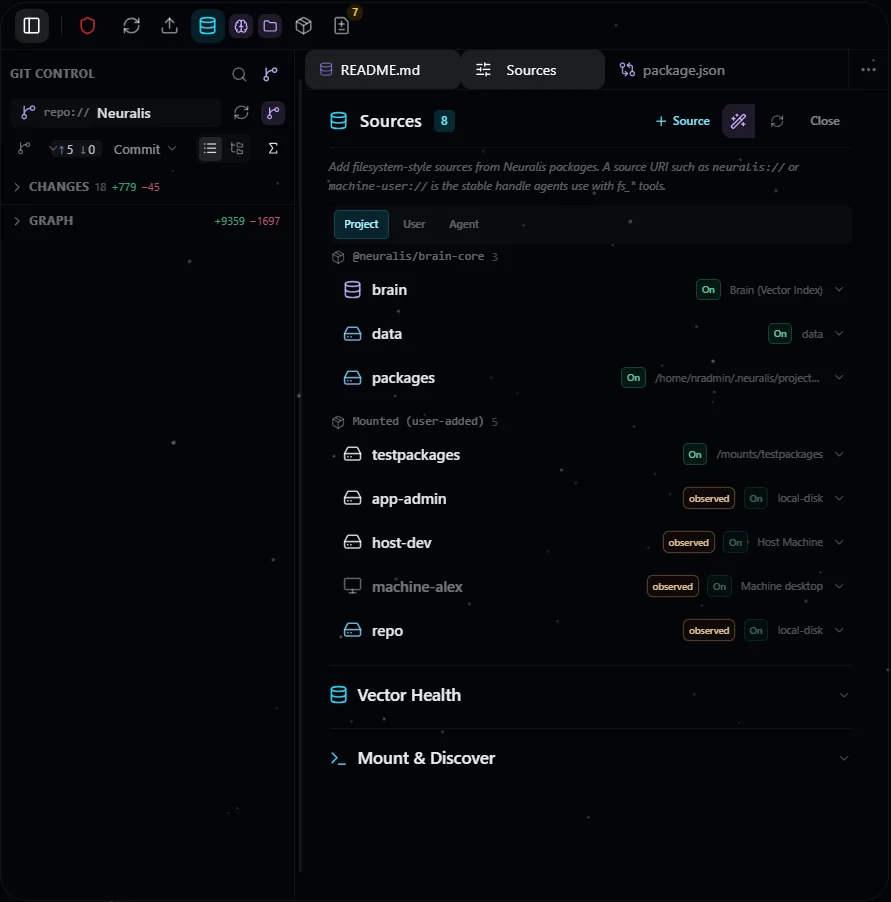
Files in a configured installation, with Git controls and Sources beside the file browser.
The UI is never the authority
Every operation in the Files UI calls the same routes agents and external clients use, with the same session identity and the same feature gates. Hiding a button is a courtesy; the server-side check is the control.
Browsing sources
The left side is a virtualized file tree spanning every source the caller can see. Each source renders as a top-level branch with its kind icon; package folders pick up the owning package's icon. The tree merges the vector index with live connector listings and marks files whose index presence differs from their parent with a compact glyph (the presence model is on Tools).
The tree is policy- and scope-aware: it renders what the server returns for the caller's session, and nothing else. Sources outside the caller's scope are absent, not greyed out — a non-member cannot infer that they exist. Path rules from URI policies are applied server-side on every route; the UI uses a server-produced policy snapshot only for affordances like dimming.
Source headers appear first, before any storage backend is contacted; a source's content loads when you open it, so one slow source never holds up the rest. Each header shows its own state — a spinner while loading, a dimmed row while unopened or after a failed listing (an unreachable source dims for a different reason and says so in the tooltip) — and carries its own refresh control. Live updates arrive over a server-sent-events stream and re-read only the folders on screen. The toolbar Refresh is the authoritative check for the two cases live updates cannot cover — a file removed while your connection was down, and a listing too large to be complete: it reconciles the open folders against the server, removes nothing on a pass whose listing was incomplete, and flags that source on its header. The widget also re-checks by itself after a dropped connection is restored.
Deleted files. Deleting a file the platform tracks does not erase it: it is struck through and stays visible while it can still be restored. A file that only ever existed in external storage simply disappears. A folder that is gone but still holds a restorable deleted file is struck through too. Clear such an entry in Changes (restore, discard or dismiss the record) or with Vector Health → Clean up, which removes deleted records past their retention window (24 hours by default) — so a file deleted a moment ago is not eligible yet, and the tree drops those rows on its next refresh.
Discover — sources you could add
When every source in the tree is collapsed, a Discover list appears pinned to the bottom of the Explorer: well-known locations available to this project but not attached yet — the project zone, the app zone, a folder your operator exposed as a mount, a source a package offers. You see it only if you may attach sources. Clicking a row opens the Add Source form already filled in — the connector kind, the path, the scope, the suggested access, and possibly an include allowlist and path rules that keep sensitive files unreadable. Everything is visible and editable before you save, and the server still checks that you may attach that location.
The form is one page, in the order you decide: the kind (a Host folder, the brain, the Machine desktop), Where the folder lives, the folder itself, who sees it and what it may do, sync, and an Advanced fold for the URI scheme, the host mirror path (derived for you), the description and package folders. Each connector declares its fields, so a kind that needs no path does not ask for one, and Exec is offered only for a kind that can run programs.
Where lists this server and your own paired devices by name, online state
and confinement. An offline device stays selectable but dimmed, because you can
attach while it is away, and a revoked one is not offered. Browse opens a
folder picker: on this server it walks the suggested locations one level at a
time — in a container, the volume mounts your operator exposed; on your own
device it opens the folder you typed, or the folders that device allows this
server. Open a folder it does not allow yet and Ask on that device sends a
request to the device — the grant happens there, on the desktop app's
This computer page or with
neuralis device grant; Attach anyway saves the source and it serves once
the device allows it. Only a device's owner can browse it, whatever role anyone
else holds.
Search
The sidebar's Search view (a toggle beside Explorer and Git Control)
replaces the tree with a search surface. Three modes map onto the
fs_search engines:
Keyword (default — the indexed word search), Semantic (by meaning), and
Grep (literal scan of live connector content, scoped to a disk-backed
folder). A filter row — filename, category, status, tags, created-date range,
and a scope-to-current-folder switch — combines with Keyword and Semantic; grep
uses the filename and scope filters. Results render as one list with match
badges (hybrid / semantic / keyword), scores, and uri:line locations for grep
hits. When a semantic request ran as text search, the list says so in one line
with the reason, and a result whose semantic embedding is missing or stale
carries a small badge.
Git Control
For sources that hold git checkouts — the source root itself, or repositories
in its folders — the sidebar has a Git Control view that replaces the file
tree in place. A repo-switcher lists every repository you can access, named by
the source and the repository's real name (repo:// Neuralis); choosing one
drives the whole panel. The picker only looks downward: a source rooted
inside a larger checkout is not git-backed here, because every git route
requires the repository to sit at or below the source root — attach the
repository root as its own source (and fence the rest with path policy) if you
want git on part of it. A folder on a paired device gets the same panel: git
runs on the device itself, and fetch, pull and push there belong to the
device's owner alone, signed in with the device's own git credentials — never
with this server's.
The panel shows the current branch and the working change-set in Changes (untracked files included, marked U) and Staged Changes, as a flat list or a folder tree, in drag-resizable collapsible sections whose state persists per browser. Clicking a row opens a side-by-side diff tab (working tree against the index, or the index against the last commit) with collapsible unchanged regions. Source rows in the tree and the Sources panel carry a git marker and the repository name(s) beside the sync indicator.
You can stage and unstage changes (whole file or a selected hunk),
discard working-tree edits, commit (the commit box sits behind a
Commit toggle; Ctrl/Cmd+Enter commits), and switch, create, or
delete a branch. A destructive action (discarding edits, deleting a
branch) always records a recovery point server-side first, independent of the
confirmation dialog, and its notice carries a one-click Undo. These
controls appear only for a viewer who may write to the selected repository —
the write feature and write permission on the source, per repository — and
clicking one is itself the consent; agent-driven git goes through the git
skill and its own approval flow.
A Graph section renders the history as a commit-lane diagram that keeps
loading as you scroll; clicking a commit shows its message and changed files,
each opening a diff against the parent, and Open Changes opens the whole
commit. When the branch tracks an upstream, not-yet-pushed commits and an
Outgoing changes row show in blue, with ↑ahead ↓behind counters from your
local refs inside a fetch / pull / push button. A toggle shows +/- line
counts per file and commit; a row with no number means the count could not
be established honestly (binary, an unmeasured new file, a file transformed on
commit) — never zero — and a total that could not account for every row ends
in +.
The panel stays live: a git operation in the panel or an external command in a terminal refreshes the change-set, the branch and the graph, each nested repository watched individually. It is scope- and policy-aware like the rest of Files: the repo-switcher lists only repositories you may see, a path rule that hides a file hides it — and its line counts — everywhere, paths are always repository-relative, and a member who cannot see a project's git sources never learns they exist.
Connecting a git remote
Pushing, pulling, and fetching need a credential for the remote host. You connect one in the chat Configuration panel's Git Remotes section (visible only with the connect git remotes feature): paste a personal access token for the host, pick the host type, and save. The token is stored write-only in your own personal scope — it is never shown again and never echoed back, and another member can't read it. Owners and admins manage project- or agent-wide git tokens from the admin Credentials tab instead.
Two boundaries apply:
- HTTPS remotes only. A remote must use an
https://URL; SSH remotes are not supported and fail closed. - Remote operations additionally require
exec. Connecting a token is not enough to run git against the network — the source must also grant theexecURI policy (on top of write permission). Without it, the fetch / pull / push popover shows a "grant exec to enable remote operations" message instead of the controls, and the routes return the same result rather than running.
Push publishes the current branch (no force), Pull fetches then
fast-forwards, and Fetch refreshes your remote-tracking refs so the
ahead/behind counters show true divergence. Each operation uses your own
connected token for that host, released only to the exact connected host — it
never appears on the command line, in .git/config, or in a URL.
For every supported host the token is the password; the connect form shows the resolved git username as you fill it in:
| Host / token | Git username |
|---|---|
| GitHub PAT (classic + fine-grained), GitLab PAT, Gitea / Forgejo PAT, Azure DevOps PAT, self-hosted | your account label (any non-empty value; the account name is ignored but must not be empty) |
| GitLab OAuth token | oauth2 |
| Bitbucket access token | x-token-auth |
| Bitbucket Atlassian API token | x-bitbucket-api-token-auth |
Bitbucket app passwords are not supported (Atlassian removed them); use an access token or an Atlassian API token. Azure DevOps shares one host across orgs, so a PAT is the reliable choice there. Minimum push scopes:
| Host | Minimum scope |
|---|---|
| GitHub | classic PAT: repo · fine-grained PAT: Contents Read/Write + Metadata Read |
| GitLab | write_repository (read-only: read_repository) |
| Bitbucket | write:repository:bitbucket (+ read) |
| Azure DevOps | Code (Read & Write) — vso.code_write |
| Gitea / Forgejo | write:repository |
Editing files
Clicking a file opens it in a VS Code-like editor: syntax highlighting, a line-number gutter, and a git status stripe for tracked files; highlighting is incremental, so files of hundreds of kilobytes stay responsive. Edit turns the view editable in place and Save writes the change for review. Markdown renders as formatted text with a source toggle; images and video preview inline. Formats a browser would execute as a document — SVG, HTML and XML — download instead of rendering, because a file one member writes is opened by another and an executable preview would run with the reader's session.
Open files live in persistent tabs that survive a refresh (reorder, pin, Close All / Close Saved / Close Others, optional preview tabs). The widget's state — tabs, expanded folders, sidebar view, panels — is kept per agent and project, so switching agents shows that agent's own Files state. The dock's clean (broom) control empties this client-side state without touching anything on the server. Uploads go through the Upload tab, by picking or dropping files.
Agent writes surface in chat as a filesystem-change card: a diff drawn while
the agent is still writing, with an accurate added/removed count once the call
completes, and — for delete — an approval card that holds the operation until
the user approves (except in auto mode, which never asks). The card never
re-issues writes; approval goes through the approve route under files.write.
Pending changes open as a review diff (unified or split) in the same syntax
colors as the editor.
Managing files and folders
The file tree is a full file manager. Right-click a file or folder for New File, New Folder, Cut, Copy, Paste, Copy Path / Copy Relative Path, Rename, and Delete; select several items with Ctrl/⌘-click or Shift-click. Rename (F2) and create happen inline. Delete asks for confirmation and moves the item to Changes, so it is always recoverable. Drag a file or folder onto another folder to move it — including into a different source — and copy/paste duplicates within or across sources. In the vector memory, folders exist implicitly wherever files are stored under a path.
A rename or move never overwrites: if the destination name is taken, the operation is refused with the reason; copy, paste, New File and uploads instead land beside the existing file under a suffixed name. A file the index still lists but that has since vanished from disk counts as taken until the next sync. When you rename, move, copy, or create something it applies immediately; when an agent does it on your behalf it lands in Changes for review.
Changes
The Changes tab groups the current Git working changes and pending filesystem review across visible sources, including sources without Git. The same file appears once, with separately labeled comparisons for each repository's staged and unstaged bases alongside its pending baseline. Inventory limits are shown explicitly; a partial source is never presented as complete. Diff cards load as they scroll into view and keep their diff until the file or its source changes. A Type filter (all / pending review / Git) and source/agent/conversation filters narrow the list; historical commit and outgoing cards are read-only.
Every revertible change an agent makes is recorded in a durable journal with a
baseline copy of the prior content, so listing, approving and reverting survive
a restart, including for files that were never indexed. The journal is never
vectorized and is readable only by owners and admins; each entry is re-checked
against path policy and ownership when listed, so a user sees only their own
changes unless their role carries the scoped-observation feature. The tab
requires files.read; review controls require WRITE access. An owner or
admin with scoped authority can resolve the changes an agent or teammate
created — it is a shared review inbox, and the change keeps its author's name.
Each change offers Approve (commit it) and Revert (restore the baseline),
both against a fresh preview of what is on disk now, what was recorded, and the
saved baseline. If the file changed after the preview, the card takes a new
preview and asks again — a conflict never retries automatically. Approving a
deletion accepts it for good. Approve N approves the visible changes that need no extra confirmation and
shows the rest as M need confirmation; those open in one dialog grouped by
reason (original draft unknown, changed outside the review, diff not readable),
and whatever a sweep could not do is listed per change afterwards. The toolbar
badge counts the changes you can review (+ for a lower bound, ? when
unavailable), and a burst of agent writes leaves ONE notification, never one
per file.
Dismiss (the x button) is "accept and stop reviewing": whatever the agent
did stays exactly as it is — a created or modified file stays on disk and
indexed, a deletion stays deleted — and only the review entry ends. It is
permission-aware like every resolution and safe to repeat. A change whose file
or source has disappeared with no baseline to restore is marked Orphaned;
its only action is Discard, which removes the stranded entry and never
recreates a file. A Repair button appears whenever orphaned changes exist
and processes visible batches after a confirm, with Stop, Load more and
an explicit Continue / Retry on a partial page; an actionable change can
never be discarded by mistake, and a transient error is never treated as a
removed source. From a chat conversation, Open in Files jumps to this tab
scoped to that conversation.
The Sources panel
Source administration lives in the right-hand panel. Rows are grouped by the package that owns the source, with sources you mounted yourself in one Mounted (user-added) group; attribution is resolved on the server from the packages' declarations, so it cannot be spoofed by naming a mount after a built-in source (Sources).
- Add a source — pick a connector kind, choose a scope (project, user, agent), and fill the kind's form, rendered from the connector's declared schema; the key field is pre-filled with a scope-qualified suggestion.
- Mount & Discover — the discoverable roots (the app zone, the projects
zone, any
npx neuralis mountbind, and on native deploys the Full Host root:/, or each Windows drive root). High-blast-radius roots pre-fill as read-only. Privileged zones (the app zone, the Neuralis source tree, the whole host) requiresources.privileged— without it they are hidden, browsing them is denied, and attaching a source in, over or at one is denied server-side; ordinary mounts need onlysources.mount, which both the list and the Browse button require. The Neuralis tree offers a narrow proposal rooted at its skills folder alongside the whole-folder one, which arrives with a skills-only include plus a rule denying.envfiles, because that root holds the deployment's environment file. - Describe — a description field that feeds the agent's runtime-stack source table, so it doubles as agent guidance.
- Sync controls — Sync, Cancel, Rescan changes, Forget sync state and Re-embed… (estimate first, confirmation to start; also on the tree's context menu for a folder or file), the sync trigger, exclude and include lists, and the Media toggles. What each does is on Sources.
- Per-source counts — computed only when you expand that row, scoped to that source and cached, so opening the panel never walks the project.
- Enable toggle — flip a source live or dead without deleting it.
- Recognize packages — local sources only, owner/admin: packages dropped
into the folder load alongside the project's
_packages/; a user- or agent-scoped source's packages are advertised only to that user or agent. - Policy editor — read/write/exec on the default block, per-role, per-user
and per-agent override rows, and path rules. Requires
sources.policy. - Delete — an inline confirm that states the host folder is never touched and offers an off-by-default Purge vector index entries checkbox.
Vector Health
The Vector Health panel is the project-scoped index janitor. It loads only when you expand it and then shows just the cheap, exact count stats; the expensive checks run only when you ask:
| Operation | Cost | Effect |
|---|---|---|
| Stats | Cheap (exact counts, no scan) | Total / document / chunk / deleted counts, per source — instant at millions of points |
| Scan for problems | Expensive (walks every point) | Orphan-chunk and duplicate-document detection — explicit, on-demand only |
| Garbage collect | Destructive | Drops records marked deleted that are older than the retention window, except those a pending change still needs for its revert |
| Repair orphans | Destructive | Drops chunks whose parent document is missing or flagged deleted |
| Find duplicates | Read-only | Report of documents sharing a content hash |
Destructive actions take a second confirming click and support a dry run.
Repair pending discards your own orphaned changes and only counts older
changes whose original draft is unknown (confirm those in Changes); it never
reindexes anything. Garbage collection also runs on its own once a day by
default (vectorGcIntervalHours, 0 turns it off), for every project as
explicit system work — never under a user's identity — starting one interval
after the server starts. GC and orphan repair never run twice at once for the
same project (409 action_in_progress). Members who may change files can list
the files the index rewrote most in the last hour — the signature of an
automated writer that rewrites instead of appending — filtered to what they may
read.
One vector collection serves every project, so collection-level work — payload
indexes, segment and quantization settings, BM25 text ranking, and the
embedding-model rebuild — belongs to the owner, in a maintenance window, behind
platform.vector.maintain (no default grant); it is the admin Vector section
and the health/collection route, and none
of it runs at startup. Startup only creates missing indexes and warns when the
Qdrant server and the shipped client are more than one minor version apart.
If Qdrant is unreachable — when the package starts or later — the platform
stays up and nothing substitutes for the index. Reading, listing and raw
downloads of connector-backed files keep working, and so do creating, copying
and uploading files. Semantic search, sync, and changing, moving, deleting or
reviewing an existing file wait: they answer vector_store_unavailable, and
sync jobs stay queued. A background watch re-probes every 30 seconds and
reports into the host's health endpoint; when Qdrant answers again, search and
the queued sync continue by themselves, without a restart.
Packages panel
The Packages panel lists exactly what the window's agent can use from the
project's own packages and its sources' package folders — the same view of
scope and features the agent gets — with each package's state (a package on an
offline device reads "Not available"), trust, runtime, contributions and the
feature that gates it. Native packages are not listed here. Marking a package
trusted, building one and attaching an access feature happen in
Admin → Packages; the panel links there for a role holding
packages.manage. See
features and access.